Friday, June 26, 2020

How COBRA Act works in US

COBRA, an abbreviation of Consolidated Omnibus Budget Reconciliation Act is a 1985 US Law that gives workers and their families right to continue group health insurance offered by their employer in certain curcumstances such as loss of job, termination, divorce etc...

In a typical scenario, employee has to work or give services to their employer and in return employer will give them wage or salary. In addition to wage or salary, employer also gives their employees health insurance benefit which includes  Medical, Dental and Vision. Employees can also enroll their spouse and children into their employer provided health coverage protecting their loved ones too.

Whether it's for individual or family, health insurance has a cost associated to it which should be born by either employer alone or both employee and employer split the cost. It all depends on employer policy.


Either way, the total cost would still be far less than private insurance cost that employe choose to take outside.

How COBRA Works ?

Now, what if employee is terminated ?
In that case, Along with the job, they would also be on the verge of loosing this health insurance for them as well as their family and precisely that's when COBRA comes to their rescue and gives them right to continue their group health insurance for upto 18 months by paying the full cost as employer will no longer pay it's share. And this will be until they secure another job which offers them another gorup health insurance in which case the first one will be discontinued.

Now Imagine COBRA wasn't there. In that case, this employee would either have no health insurance at all, or would force to go for a far expensive private health insurance.

Consider another instance when spouse, who is one of the dependents, get divorced. This will also lead to spouse loosing their health insurance but incidentlly, this is another instance when COBRA would help them save it. So COBRA gives the spouse, who is now divorced, the right to retain the group health insurance for upto 36 months by paying the full cost as applicable.

COBRA Qualifying Events

So, on two separate events, Employee, upon termination, and Spouse upon getting divorced, used COBRA act to continue the group health insurance for a certain period of time. We call these events COBRA Qualifying Events which determine the period for which the eligible person can continue the group health insurance. Apart from what we already talked about,
There are few other qualifying events such as:
  • Reduction of Work Hours
  • Loss Of Pay
  • Enrolment to Medicare
  • Ceased to be Dependent 
And these events also ensure the extension of group health insurance to applicable individual for a cerain period of time.


Monday, June 15, 2020

PeopleSoft to Third Party Integration Through Web Services

This has been most challenging topic for many PeopleSoft professionals as it involves several elements when establishing such an integration. Lets demystify this today.

These are the steps to establish such an integration:

Related Articles:

1. Check Local Network Configuration

In this step, we need to ensure the Gateway is setup up properly and that we are able to ping the gateway successfully. This also involves setting up the password key in the gateway property.

2. Setup External Node (WSDL)

A new node needs to be created which will establish connection with external system. We would rather create a copy of the delivered WSDL node and provide all the connection information. The connection details can be found in the WSDL provided by the third party.

3. Consume Web Service

The WSDL provided by third party needs to be consumed into PeopleSoft which will create all the necessary Service Operations to read and write incomming and outgoing messages.

4. Enter Connection Information

Once the service operation has been created, we need to enter the connection information i.e the PeopleSoft Node and WSDL Node that we have created.

5. Configure Security

The user who would be triggering the external integration needs to have full access to Service Operations working underneath. The access need to be granted to this user via Service Operation security page.

6. Business Logic (PeopleCode)

The Peoplecode which will read the incomming message and write the outgoing message bundleled in SOAP protocol need to be written in the appropriate event such as FieldChange, FieldEdit, SavePostChange whereever applicable.

Related Articles:


Friday, January 17, 2020

Best way to master any HCM software in just few days


Human Capital Management is a practice for organizations to manage the recruitment, employment and development of company's employees through ERP software's and every company be it small or big follows this practice.This creates ample opportunities both for experienced processionals and freshers seeking career in this domain.

This also creates perfect breeding ground for ERP vendors to develop HCM softwares competing each other to offer best in class technologies and this has resulted into hundreds of HCM softwares currently in the market and they keep coming much more often than ever before. With so many software products in the market, one really finds it very difficult to decide which one to choose and make the career in it hence wandering off the real goal which is to master the domain.

This is simply because people focus too much on the particular software they are working or interested to work instead of looking at the big picture. One can't really learn to work on all of the HCM softwares.

Related Articles:

How COBRA Act works in US


In my opinion, the best way to master the HCM domain is to focus on learning the domain directly rather than through the ERP Softwares such as ADP, KRONOS, PeopleSoft, Oracle Fusion, Successfactors etc... Lets break it down to simplify more.

HCM domain consists of following components:

Core HR which consists of
  • Recruitment 
  • Workforce Administration
  • Performance Management
  • Career and Succession Planning
  • Compensation Management
Benefits Administration
Time and Labor
Absence/Leave Management
Payroll

Each component represents a business process. For instance, Core HR is for entire workforce administration from hire to exit while Time and Labor is for time management. The core structure of these business processes remain same across countries but some of these such as Payroll  have some country specific elements driven by legislative laws of the particular country. While others such as Performance Management remain same across countries but may differ from one company to another.

Now that you have a bird eye view of the individual business processes under HCM suit, the next thing to do is dissect each one of them and understand their life-cycle which will give you a very clear picture as to how they would be configured in any product. Once we master these processes, it's a matter of just figuring out how they would be facilitated in any HCM software. Most people think that the software drive the business process but it's rather other way around.

Not clear enough ..?  Lets understand with an example.

Consider you want to learn Benefits Administration and have very limited time for it. Lets break it down how you should do it.

Dissect the business process

Benefits Administration process consists of following elements:

  • Plan Types ( Health, Life, Disability, Saving, Retirement etc...)
  • Plans (Dental, Vision, Basic Life, Suppl Life, LTD, STD, 401(k), Pension etc...)
  • Benefit Providers (Companies like United Health Group, Religare, ICICI Prudential etc...)
  • Coverage Amount and it's Calculation formula
  • Premium Rates (Paid by Employee and/or Employer) and its calculation formula
  • Life Events
  • Enrollment Life-cycle

Study each element 

We need to study each element in details and draw a picture as to how they are related to each other
For instance, Life Events is when an employee's family status changes due to an event of marriage or birth of a child. When this occurs, the employee needs to inform their employer about this and upgrade their health coverage to include the new dependent. While reporting the Life Event, employee needs to provide all the details pertaining to the event. The type of details depend on nature of event such as birth or marriage.

How it works in the HCM Software

Now turn to your HCM software and figure out how the business process and it's elements are configured. If a particular HCM software supports the particular business process such as Benefit Administration then it would definitely facilitate the configuration of it. How it does can vary from one software to another. For Instance - PeopleSoft may have multiple pages to setup different elements of business process whereas Workday might have just one to setup all and it really doesn't matter as long as one knows how to do it.
Suppose you have to setup a health plan in the system. The first thing to do is gather all the information about the plan such as, eligibility, coverage and premium calculation, vendor details etc. Then just figure out how all of this will be configured in the system. You need to follow the same strategy for all other modules.


Saturday, June 1, 2019

Payee %1 is being processed in Group List %2 run by User %3. There could be other overlaps.

The below error usually occurs when we run the payroll for a payee using group list who is already being processed by another user through another Group List.

Payee %1 is being processed in Group List %2 run by User %3. There could be other overlaps.

To resolve it, the user needs to be deleted from the other group list used by the other user. Just run below SQL and re-run the payroll for payee in error.
DELETE FROM PS_GP_GRP_LIST_RUN WHERE oprid = '';

ORA-00001: unique constraint (SYSADM.PS_GP_PI_GEN_SOVR) violated in Global Payroll

This error usually occurs when the COBOL process GPPDPRUN errors out and we run it again on top of that. It basically tries to insert the same set of rows on the payroll processing tables with the earlier set of rows already present. And when it does that it throws the UNIQUE CONSTRAINT error.

The first thing that we need to do is check the process log where we will get the clue as to where exactly process failed. Important thing to notice here is, if you process the payroll through streams then it's better to check which particular stream caused the COBOL to fail. Once the stream is located then just cancel that particular stream and re-run it, the error will be gone.

However, if the payroll is processed without streams then the whole payroll needs to be cancelled and re-run which will resolve the issue.

Saturday, April 6, 2019

PeopleSoft Installation: Change from host-only to bridged to enable internet in VM

When you deploy Linux based PeopleSoft VM on Virtual Box, system enables Host-Only Adapter so that host and guest can communicate with each other. Most likely, guest machine is assigned an IP 192.168.56.101 though it might differ also.
But the issue with this type of setup is that, guest machine can't communicate with external network which means Web Services to communicate with third part systems can't be created and to deal with this we need to change the adapter setting in Virtual Machine so that it can communicate both with host and external network. The best contender for the same is Bridged Adapter but that's not just enough as we have to also do couple of other things for this to work so lets get started.

Change network setting

Change the network type form host only to bridged adapter under network setting in Virtual Box as shown below:


Obtain new IP address of VM

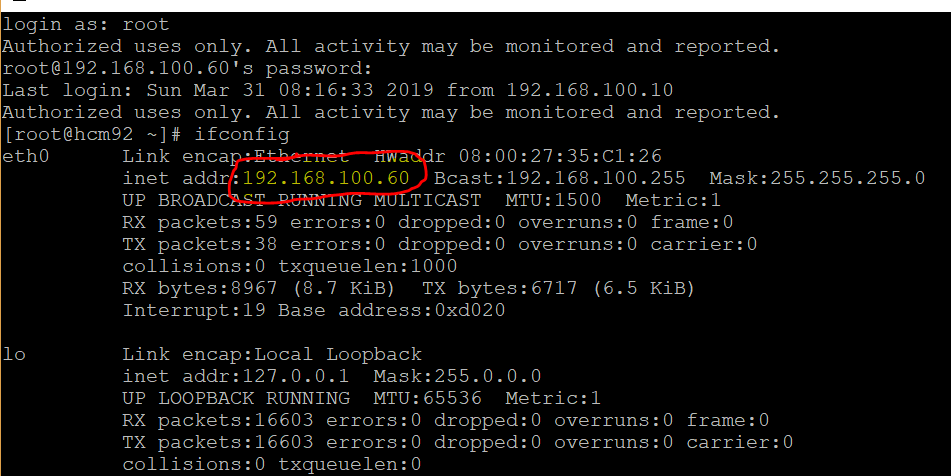
Restart the VM and check the new IP address by issuing ifconfig command and note down new IP address

The new IP address of VM is 192.168.100.60

Changes in host system

Do following changes in the host machine

tnsnames.ora file

File Location - C:\oracle\product\12.1.0\client_1\network\admin
change the IP address to new IP address i.e. from 192.168.56.101 to 192.168.100.60

Hosts file

File Location - C:\Windows\System32\drivers\etc
change the IP address to new IP address i.e. from 192.168.56.101 to 192.168.100.60 for host hcm92.ps.com

Change in guest machine

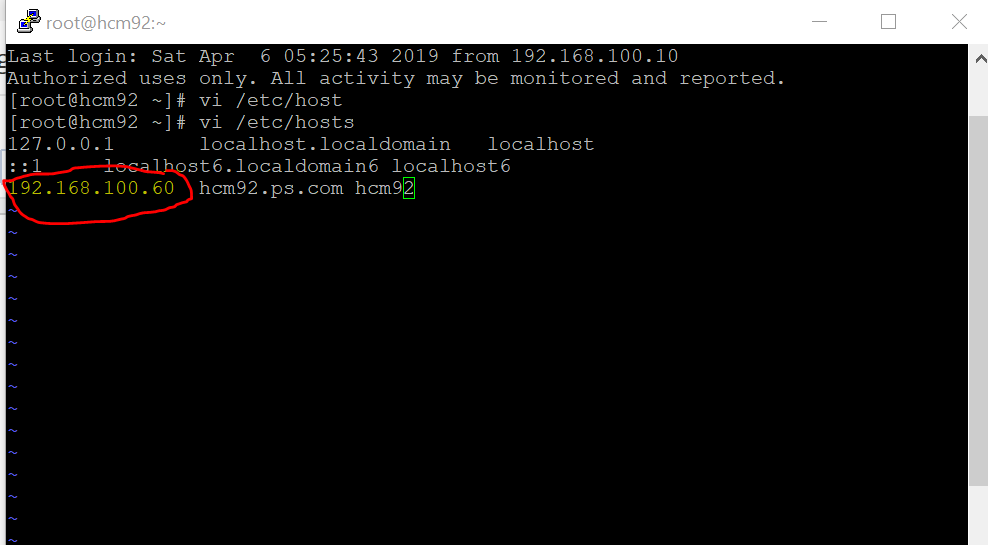
Login into VM and change the IP address to new IP address i.e. from 192.168.56.101 to 192.168.100.60 for hcm92.ps.com
Hosts file location - /etc/hosts


Friday, April 5, 2019

Segmentation not created for a payee in PeopleSoft Global Payroll

Recently we had an issue when payroll wasn't creating segments for a new country for which we were implementing GP. We spend nearly two days trying to figure out what exactly was causing this.

These are possible reasons:

Unprocessed Iterative Triggers

If one or more iterative triggers of previous period are in unprocessed state then segmentation for those employees will not be processed. If so then delete those triggers using below SQL
DELETE FROM PS_GP_RTO_TRGR WHERE COUNTRY = <payee's country> AND EMPLID = <emplid> AND TRGR_STATUS = 'U' AND CAL_RUN_ID <> <Current Calendar Group>;

There might also be unprocessed iterative triggers created for the country other than payee's country which will cause this hence delete those triggers too.

Unprocessed Retro Triggers

If one or more retro triggers for other countries are in unprocessed state then segmentation for those employees will not be processed. If so then delete those triggers using below SQL
DELETE FROM PS_GP_ITER_TRGR WHERE COUNTRY <> <payee's country> AND EMPLID = <emplid> AND ITER_TRGR_STATUS = 'U';

Segmentation Triggers

If one or more segmentation triggers for other countries exist and are active for those employees then segmentation will not be processed.
DELETE FROM PS_GP_SEG_TRGR WHERE COUNTRY <> <payee's country> AND EMPLID = <emplid> AND SEG_TRGR_STATUS = 'A';

In our case, all above where the reasons so we basically deleted all those unwanted triggers (Iterative, Retro and Segment) using SQL script and it resolved the issue. The segmentation was processed.