Showing posts with label PS Query. Show all posts

Sunday, February 3, 2019

Why the dynamic role isn't getting assigned to intended users in PeopleSoft

I was once working on a project where I had to create Query for dynamic role assignment. Everything was going well as I was able to create it without any challenge. The query was fetching the desired set of users to whom the role was supposed to be assigned.

However, when I ran the Dynamic Role Assignment app engine (DYNROLE_PUBL), the role wasn't getting assigned to the intended users. I did the RCA and turned out that the PS Query which I created, wasn't returning the distinct OPRIDs hence the app engine process wasn't assigning the role to users.

To resolve the issue, I added a DISTINCT keyword next to SELECT using expression in the PS Query which though started returning distinct rows yet the main issue remained unresolved. I ended up spending several hours to get around this but no luck.

Then I read somewhere that instead of using DISTINCT keyword, I should rather enable distinct option in the query properties to get the distinct rows. The option is shown below:


Then I ran the process again and the issue got resolved.

Monday, June 26, 2017

Why query is not visible in Query Manager

Did you ever felt embarrassed by not being able to even open the Query in Query Manager let alone modify it despite having access to it i.e having access to records used in query and to make the matter even worse, this all happened when you are a PeopleSoft consultant who is believed to know such technical glitches.

Well, guess what, this was exactly what happened to me few years ago. There was a query of type Role with a simple SQL text 

SELECT OPRID FROM PSOPRDEFN

These were the properties of the query


There was requirement to make some changes in this so I quickly tried to open it in Query Manager but it didn't come in search result. Whenever we come across this particular incident, there are two things that you believe could cause this:


You don't have access to Query

If you don't have access to all records used in Query through Query Security Tree then you won't see the query neither in Query Manager or Query Viewer. So, I open the query in Query Administration (Peopletools - Utilities - Administration - Query Administration) and checked the SQL and discovered that only one record PSOPRDEFN has been used in this query to which I already have access which effectively authorizes me to open the query in Query Manager but it didn't.

Note - Query Administrator page empowers you to open any type of query whether or not you have access to it.


Query is private

Having had no luck here, I then turned my attention to what if Query is Private ? so I looked closely at the attributes of this query in Query Administration.


Having discovered that query isn't private either because it's not assigned to any user, when it's assigned to a user then it means it's private, I then started to feel puzzled as to what the heck is going on. Then after digging through little more I felt so stupid when I finally figured it out. I went to query manager again and clicked on Advance Search


There it is..! by default the query type selected by system is User so when I entered the query name and hit on search, the Query Manager tried to search only those with type User whereas my query was of type Role hence despite having full access to it and query being public too, I couldn't fetch it.

So all I did was, change the value in the drop down above to Role and then performed the search again and it did the trick.


You can gain in-depth knowledge on PS Query with a live example by just paying below amount


I have a complete session in two parts which explains:

  1. How CI works - Overview, all the elements of CI etc..
  2. Creating an Inbound interface, that loads data on a multi level component using CI and App Engine
Below are the links to videos in YouTube.

PS Query Part 1
PS Query Part 2

Click here to know how it works

However, if you want to save money by purchasing whole module instead of in parts then visit this page to get more details PeopleSoft Functional and technical online training

Saturday, December 6, 2014

Security Configuration for PS Query in PeopleSoft

Before you learn how to secure PS Query, you must learn how to create a PS Query - Creating the PS Query in PeopleSoft

This is very important part in PS query development. It simply means that when we create PS query in PeopleSoft, we have to secure it so that only intended users can have access to it. Securing PS query means securing the records used in it by adding them into an appropriate tree and the records in our case are JOB and NAMES but since these are very common delivered records hence it is quite obvious that they would already have been used in other queries which means that they are already secured. We don't need to secure them but still its very important to understand that how exactly this is done.

Open the component 'Query Access Manager' (Navigation: PeopleTools > Security > Query Security > Query Access Manager).


Creating PS query through Query Access Manager in PeopleSoft

As I already mentioned that securing PS Query means securing the records used in it and before we do that we first have to identify which tree are we going to add our records into. For PeopleSoft HRMS the tree used for such purpose in most of the organization is 'QUERY_TREE_HR' but you can create your own tree depending upon your own requirement. Enter the tree name in the text box as shown in the screenshot above and hit on search. From the search result select the max effective dated row for the tree 'QUERY_TREE_HR' to open the updated one.


Adding queries into Query Security Tree in PeopleSoft

It opens the tree and the records currently added into it. But hold on, the records aren't added directly into the tree but into the Access Groups which is ultimately added into the tree. The Access Groups are nothing but entities into which similar records are added. There can be more than one Access Groups in a tree and also an Access Group can be added inside Another Access Group. In the image above, the access group 'HR ACCESS GROUP' which is also the root Access Group is highlighted.

Now we have to identify which Access Group we should add our records into ?
There is an easy trick for that if we don't know the desired Access Group. We can rather find out which Access Group other similar records are added and once we find that, ,we can add our record in to the same. So, just click on 'Find' link as pointed in above image to open the search page:


The record 'TEST_RECORD' entered above is the similar record for which we need to find the access group. Click on find and you will see the search results as below:


Well, the results shows that the record 'TEST_RECORD' is added into Access Group 'NEW_EXIT_REC_AG' which is added in the Access Group 'HR_ACCESS_GROUP' which is ultimately added in the tree 'QUERY_TREE_HR'.
Now we know that our record has to be added into the Access Group 'NEW_EXIT_REC_AG' so click on this group and then add the record into it. Click on the toolbar 'Insert Child Record' displayed right next to the Access Group name which will open the search page for the record that you wish to add. Enter the record name and then add it.


Set Access Group Permission:
I already mentioned earlier that securing a PS Query means securing the records added into it and at this point we have added these records into the appropriate tree. Now we have to add the tree (QUERY_TREE_HR) and it's Access Group (NEW_EXIT_REC_AG) into a permission list which then will be added to only those users profiles who are supposed to be able to access query 'TEST_QUERY_NEWHIRE'. 
Open the permission list definition into which you want to add the tree and access group, go to the tab 'Query' and click on the link 'Access Group Permissions' to open below page:
 
Adding Query Definition into Permission List in PeopleSoft

Finally, add this permission list into an appropriate role of the desired user's profile.


You can gain in-depth knowledge on PS Security with a live example. I have a complete session in 6 parts that covers all the aspects of PS Security


Below is the link to videos in YouTube.
PS Security

Click here to see the course contents
Click here to know how it works

However, if you want to save money by purchasing whole module instead of in parts then visit this page to get more details PeopleSoft Functional and technical online training

Creating the PS Query in PeopleSoft

Before I begin, I would like to mention that though this article is in the continuation to the article Creating Query Report with PS Query in PeopleSoft but it still give enough insight on how exactly a PS query is created in PeopleSoft.  
 
PS(PeopleSoft) Query is a tool to create simple as well as complex queries to extract the data from PeopleSoft tables. That been said, PS query is used extensively in creating Query Reports and it also serve as data source for other reporting tools like XML Publisher, nVision etc.. XML publisher is rather an advance reporting tool introduced in PeopleSoft.

For beginners or even those who are experienced though but haven't yet actually got their hands on the PS Queries it's quite difficult to deal with them so let's get down to it and create one for this requirement. 
To make it more simple, think of creating a PS query as creating a Select SQL in any of the SQL Editors (SQL Developer, Toad etc...). So, what are all the steps we do to create a select SQL:
  1. Identify Records
  2. Select Fields to be used
  3. Define Selection Criteria
  4. Define Having Criteria if any
  5. Finally run the Query
We do exactly all above steps to create a PS Query but in functional way. there are various pages, tabs and buttons that PeopleSoft has provided where we can perform all above tasks to create a PS Query.

Step 1: Identify Records 

Go to the navigation PeopleTools -> PS Query -> Query Manager and click on the link 'Create a New Query' to open below page:


 As shown in the image we have to add the records that are going to be used in the PS query. In our case the records would be JOB and NAMES hence, first search them and add in the list by clicking on 'Add Record' link shown in the screenshot. When the first record JOB is added followed by NAMES and if there is a possibility of join among them then PeopleSoft displays a link 'Join Record' which when clicked, the join criteria is automatically added into the query.


Once clicked on 'Join Record' link, below page will appear which will ask to choose another record with which the current record needs to be joined. Click on that record as shown below.


Step 2: Select the Fields

After the records have been added in the query, the next step is to identify the fields required to be displayed in the report. In our case the fields are - Employee ID, Name, Employee Record, Effective Date and Effective Sequence. Click on the 'Query' tab
to select the fields to be added from the added records as shown below:


Well, this tab is not just to select fields from the records but more than that. See the various join link on the right for instance the link 'Join DEPT_TBL' which enable us to join other records with the added records (JOB and NAMES in this case) based on the common occurrence of key fields across these records. For example, the records JOB and DEPT_TBL can be joined based on the existence of the field DEPTID in both tables and it being a key field in DEPT_TBL.
You can expand and collapse the list of fields for each record in this page. In the image above, we have selected all the required fields from JOB record and once done we will collapse it and expand the NAMES record to select the desired fields from that record. For our requirement we only have to select the field Name from NAMES record.


Step 3: Add the Criteria

So, we have done pretty much well so far. We have added records to be used in the query, fields to be displayed in the report and Joins wherever necessary. However, we can still add more records into the query and fields as well from the pages (in other word tabs) 'Records' and 'Query' respectively if needed. If you want to see the progress made in the query so far then go to the tab 'View SQL' where you will see the SQL resulted from the work done so far on this page.

So far we have just Joined the tables JOB and NAMES on the key field EMPLID but there are couple of more criteria yet to be added in order for the query to be able generate the accurate report and that can be done from the tab 'Criteria'. Click on this tab:


 It's little surprising that even though we haven't added any criteria till now, the three can be seen above. Well, it's not at all surprising because when we add a record which is effective dated into our PS Query, an effective dated criteria is automatically added. Since we have added JOB and NAMES record and since both are effective dated that's why two effective dated criteria have automatically been added into PS Query. But we can still delete the ones we don't need hence will go ahead and delete the effective dated criteria on JOB table (A.EFFDT). Another criteria on EMPLID is visible too because we had joined the JOB and NAMES record in the beginning.

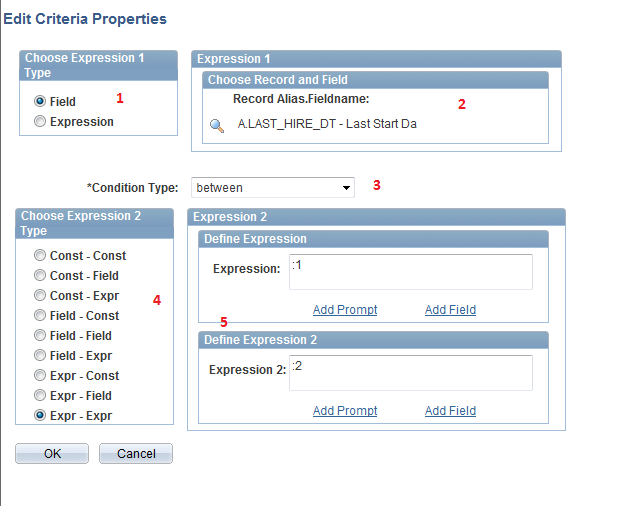
We still have to add one more criteria to make this query work for the requirement and that will be on the filed 'LAST_HIRE_DATE' which tracks the last hire date of employees.  Click on 'Add Criteria' button on top of this page.


Complete all the steps marked in red in sequence. Remember our goal here is to add the criteria 'WHERE A.LAST_HIRE_DT BETWEEN :1 AND :2' where :1 and :2 are bind variables for From Date and To Date respectively so that HRs can specify the date range during which the new hires have to be fetched into the report.Click on 'OK' and with this our PS Query will be completed.
In the cases where the reports are run by Cross Country users, the SQL resulted from this exercise will contain some row level security related criteria which will cause troubles. For more details visit - Removing Auto Generated Row Level Security Criteria from PS Query  


Step 4: Add Prompts

Though we are done with the SQL part of the PS Query, there are still couple of things we need to work on. Since we have used bind variables :1 and :2 which will read the dates specified by HRs during run time hence, we have to define the prompt fields which will enable HRs to enter Date range. Note that this particular part is specific to our requirement of Query Report which we are creating at the moment otherwise this step wouldn't be required. Click on 'Prompts' tab to open the Prompts page and then click on 'Add Prompt' Button.

Complete both the steps in sequence i.e first select the field which will take the input for From Date and then change the Heading Text to something more relevant and then click on 'OK'. Repeat the above two steps for To Date as well. Once done the prompts against each bind variable will be visible as shown below:
Lastly, we have to review the fields which are required to be displayed in the report whether they are in correct sequence - Employee ID, Name, Employee Record, Effective Date, Effective Sequence. Click on the tab 'Fields' to open the Fields page:


Clearly the order is not correct, we have to bring up the field 'Name' on the second place. Click on the button 'Reorder/Sort'
Reorder the fields as shown above and click on 'OK', the next thing you will see is the fields have been ordered correctly.
Finally save the query as 'TEST_QUERY_NEWHIRE'.

In The following article know how to secure PS Query - Security Configuration for PS Query or PeopleSoft Query Security
 

You can gain in-depth knowledge on PS Query with a live example by just paying below amount


I have a complete session in two parts which explains:

  1. How CI works - Overview, all the elements of CI etc..
  2. Creating an Inbound interface, that loads data on a multi level component using CI and App Engine
Below are the links to videos in YouTube.

PS Query Part 1
PS Query Part 2

Click here to know how it works

However, if you want to save money by purchasing whole module instead of in parts then visit this page to get more details PeopleSoft Functional and technical online training

Monday, November 3, 2014

Removing Auto Generated Row Level Security Criteria from PS Query

We have already seen how a PS Query is created through PIA in PeopleSoft in the following article - Creating Query Report with PS Query in PeopleSoft.
When we create a PS query which involves those records that has employee ID field then we see System automatically adds a row level security criteria in the generated SQL which prevents unauthorized access to the employee data. Ideally speaking, this extra security measure is indeed very significant because otherwise, everybody can access everything through PS Query. However, this additional security measure can sometimes prove to be hurdle in the way and apparently I have dealt with such an hurdle once upon a time.

There was a requirement where we had to create a ePerformance report that would generate list of employees who have gone in an assignment to UK from India and the performance document has been created for them. Well, so far there wasn't any issue though until we realized that the report should be accessible to India HR only.We got down to work and created such a report using PS Query but when we ran it as HR it didn't fetch any employee.

We were surprised to see that and were very curious to know what went wrong. We then opened the PS Query definition through Query Manager and checked the generated SQL:
The highlighted area above is the real culprit which is preventing the HR to see those employee's data who went to UK for assignments. Let me put it in another way -
The HR is of the region IND and the employee they are trying to fetch the details are now of the region GBR because they have gone to UK for assignment and since HR is not authorized to see the cross country information hence system has automatically joined row level security search records PS_EMPLMT_SRCH_QRY and PS_PERALL_SEC_QRY in the query appropriately to prevent the potential unauthorized access and it cannot be deleted from the PS Query.

So what are we gonna do now because we want that the India HR should be able to get the report on UK employees, here is the solution.
  1. Instead of creating a PS Query, first create a view (For Example - EPERF_DATA_VW) from the same records and the same SQL you have used in the PS Query that will fetch the desired employees.
  2. then create the PS Query (EPERF_REPORT) from this View EPERF_DATA_VW.
  3. Finally create the report from the PS Query EPERF_REPORT.
Check if the issue has been resolved.


Friday, October 31, 2014

Creating Query Report with PS Query in PeopleSoft


PeopleSoft ERP provides various reporting tools to cater to the requirement of the reports of different  kinds as in an organization there are numerous cases where simple  as well complex data extracts or reports are required. Today we will talk about some simple as well as complex reports.
Query reports are simple data extract in excel format created through PS Query with no advance formatting.  
for example:
  • A simple report on overall status of Performance Document created for employees
  • An absence report to extract the leave requests in a specific period 
Above two reports typically are excel reports with one header row and the data rows as shown below:


Though we are discussing about Query Reports in this article and I just mentioned comparatively that these are very simple reports just like shown in above image so it becomes important that we also get a brief understanding of complex reports with advance formatting and which can't be created with PS Query for example reports created with XML Publisher tool.


Let's have a glimpse of such a report:


Well, I wish you guys don't intend to create such a complex report using PS Query. Like I said it can only be created with XML publisher. Hope I was able to distinguish between the Simple Query Reports and the complex XML Publisher reports.

Let's cut to the chase and see how a simple query report is created in PeopleSoft.
Will now exercise the mentioned steps. Assume that you got a requirement to create a simple report which should fetch the basic details of new hires in a given period with the fields Employee ID, Name, Employee Record, Effective Date and Effective Sequence. The first step would be to create the PS query for this report.

The reports which I have created so far broadly involves following steps:
  1. Create PS Query 
  2. Security Configuration
  3. Adding a Content Reference in the Portal
Let's go through each one of these steps in detail. 


1. Creating PS Query

Creating the PS Query in PeopleSoft


2 .Security Configuration for PS Query

Security Configuration for PS Query 

3. Adding the Content Reference in the Portal

Creating a Content Reference in PeopleSoft 

After everything above is done then we just need to finally run the report as explained below.
Open the run control page for the report from Root > My Report > Query Reports > Get List of New Hires:


Provide the from date and to date value as inputs and click on view results. It will generate the result.