Tuesday, March 11, 2014

Adding and Maintaining Person Of Interest in PeopleSoft

 A Person of Interest (POI) is someone who doesn’t provide any service to the organization in any form but is of interest to the organization. There many cases in which we create POIs for example - my organization facilitates internship program for the students coming from various colleges for few months and they are treated as POI so their POI record is created. The reason they are treated as POI because during internship organization might or might not be interested in absorbing such interns as full time employees but still they are of interest to the organization.

Types of POIs in PeopleSoft:


  Broadly, there are two types of POIs:

1)      POI which require a JOB record

·         COBRA qualified beneficiaries
·         Pension Payees
·         Other Payees
·         Student refunds
·         Stock - board members

2)      POI which doesn’t require a JOB record

·         External trainee
·         External instructor
·         Non-paid intern

Let’s now try to understand how POI is created and its relationship with the organization is maintained in the organization.

As stated earlier also, a person can be added to the organization using “Add a Person” component (Navigation: Main -> Workforce Administration -> Personal Information -> Biographical -> Add a Person) and the added person is always a POI by default.

Please also see

Please also note that, if we don’t select a POI type while adding a person then by default the person is created with POI type as “Unknown” and later on we can create a POI type relationship which is explained in following sections.

We will understand these facts by adding a person to the organization as explained below:

Creating a POI relationship with or without JOB record


Step 1: Open the “Add a Person” component (Navigation: Main -> Workforce Administration -> Personal Information -> Biographical -> Add a Person)

Fill in all the required details, Please note that in the “Region” tab you have to enter region specific info based on the country selected in “Biographical Details” tab.

Step 2: Once Biographical/Contact/Region details are supplied, go to the tab “Organization Relationship”


Now, it depends on the requirement whether the person being added should have a JOB record (Organization instance of POI type) or shouldn’t have a JOB record.

Case 1: If it should have a JOB record (Organization instance of POI type) then:


Step 3: Select the check box “Person of Interest” and select a POI type which requires a JOB record (Choose as appropriate)


You would probably have noticed that when you select a POI type from drop down list box, which does requires a JOB record, the field “Empl Record” also becomes available where JOB record number needs to be supplied.

To check whether a particular POI type requires a JOB record please go to Set Up HRMS -> Foundation Table -> Organization -> Person of Interest Types for more details.


Step 4: Click on the “Add Relationship” button which will take you to the component “Add POI Instance”

Alternatively, we can also add a POI instance from the path – Main ->Workforce   Administration -> Job Information -> Add POI Instance or  Main ->Workforce Administration -> Personal Information -> Organizational Relationships -> Add POI Instance, in case you decide to add a POI who doesn’t require a JOB record at first and later you want to add POI instance for it. 

So, the bottom-line is that the same component “Add POI Instance” is opened from all these three navigation.

Step 5: Fill in all organizational details in the tabs – “Work Location”, “Job Information”, “Payroll” etc… and then click save.

Once you complete Step 5, the organizational instance for the organizational relationship POI (PER_ORG = ‘POI’) has been created.


Case 2: If it doesn’t need to have a JOB record (Organization instance for PER_ORG = “POI”) then:


Step 3: Select the check box “Person of Interest” and select a POI type which doesn’t requires a JOB record (Choose as appropriate)    


Step 4: Click on Save as in this case we don’t have to click on “Add Relationship” button. The person is added as POI who doesn’t require a JOB record.

     
However, even if you don’t select anything in this page and click on save, Person is added   with POI type “Unknown” and later on you can create a POI type for this person from Main -> Workforce Administration -> Personal Information -> Organizational relationships -> Add a POI relationship.

So, we have finally created a POI but are we done yet ?
No, we have to also look at the security aspect of POI as to how POI data is secured in PeopleSoft.
For this visit following article - POI Security in PeopleSoft

Please also see 

Want to learn PeopleSoft Core HR module thoroughly? I have several videos with total duration of 12 hours.


Following is the link to the YouTube videos Core HR
Click here to see course contents

Click here to know how it works

However, if you want to save money by purchasing whole module instead of in parts then visit this page to get more details PeopleSoft Functional and technical online training

Tuesday, February 25, 2014

PeopleSoft 9.1 Person Model


Further to my earlier posts, today we will understand the person model in PeopleSoft 9.1. For a while even I was not sure what does this term "Person Model" exactly means but after little bit of R&D I got it clear and surprisingly it’s far simpler than what I thought.


Person model in PeopleSoft is nothing but a way of organizing and storing person related demographic and organizational information in the PeopleSoft database when we add a person to the organization and subsequently create the organizational relationship for.


Please also see

Types of Person in PeopleSoft


There are three types of persons (Organizational relationship) can be created in PeopleSoft:

1.    Employee (PER_ORG = EMP)

A person who is hired to provide services to the organization and has a legal employee relationship with the organization.

2.    Contingent Worker (PER_ORG = CWR)

A person who provides services to the organization and who does not have a legal employee relationship with the organization.

3.    Person Of Interest (PER_ORG = POI)

A person who is neither an employee nor contingent worker but is of interest to the organization.

We will understand each one of these relationships in detail in following sections but for Now, let’s understand in a very high level how is the data stored in PeopleSoft database when any of the above persons is created.

There are broadly two categories of information’s with respect to a Person/Employee in PeopleSoft:
a.   Biographical data
b.   Organizational data

Biographical data - Name, Address, Contact, National ID, Smoker status...etc.

Below is the PeopleSoft database structure to store the Biographical information when a person is added to the organization (Navigation: Main -> Workforce Administration -> Personal Information -> Biographical -> Add a Person)


Subsequently, When an organizational relationship is created for the same person, Below is the PeopleSoft database structure to store the organizational information (Navigations : Main -> Workforce Administration -> Job Information -> Add Employment Instance,  Main -> Workforce Administration -> Job Information -> Add Contingent Worker Instance,  Main -> Workforce Administration -> Job Information -> Add POI Instance ):


Organizational Data - Job, Benefit program participation, earning distribution, Employment...etc.

Well, this topic doesn't end here and we need to understand the concept of Organizational relationships, Employment record number and multiple jobs which is also part of Person Model and it's all explained in other sections. 

Since we are talking about Person model so it becomes very important that we first understand below terms because we often get confused as which one represents what:

·         Organizational Relationship (PER_ORG)
·         Organizational Instance (ORG_INSTANCE_ERN)
·         Job Assignment or Employment Record  (EMPL_RCD)

  Let’s understand each one of them:

Organizational Relationship in PeopleSoft


It tells what relationship a person has with organization i.e. Employee, Contractor (Contingent worker) or Person of interest (POI). It’s represented by the field PER_ORG which exists in records PS_PER_ORG_INST, PS_PER_ORG_ASGN and JOB.

Organizational Instance in PeopleSoft


It represents the substantive or primary job created for an employee in the organization. 
There are three types of organizational instances we can create in PeopleSoft:
1.    Employment Instance
2.    Contingent Worker Instance
3.    POI Instance
In other words, after adding a person with biographical details through “Add a Person” component (for more details on how to add a person please visit the page Adding and Maintaining Person Of Interest in PeopleSoft
) when we further add an organizational relationship which in-tern creates an organizational instance and job assignment from below components:
·         Add Employment Instance (with ACTION = HIR)
(Navigations: Main > Workforce Administration > Personal Information > Organizational Relationships > Add Employment Instance, Main > Workforce Administration > Job Information > Add Employment Instance)         

·         Add Contingent worker Instance (with ACTION = ADD)
(Navigations: Main > Workforce Administration > Personal Information > Organizational Relationships > Add Contingent worker Instance, Main > Workforce Administration > Job Information > Add Contingent worker Instance)

·         Add POI Instance (with ACTION = POI)
(Navigations: Main > Workforce Administration > Personal Information > Organizational Relationships > Add POI Instance)


So, when we do transaction from either of above components it creates an organizational instance and is represented by the field ORG_INSTANCE_ERN which is a key field in the record PS_PER_ORG_INST.

Job Assignment or Employment Record in PeopleSoft


When we create an organizational instance, we also create an assignment or employment record under that organizational instance. Every new assignment is identified by EMPL_RCD field which exists in PS_PER_ORG_ASGN and PS_JOB tables.

Every new assignment is created from below components:

·         Add a Host Assignment
(Navigations: Main > Workforce Administration > Global Assignments > Track Assignment > Add a Host Assignment)
·         Add Additional Assignment
(Navigations: Main > Workforce Administration > Job Information > Add Additional Assignment)

A Person with multiple jobs in PeopleSoft


Well, I guess whatever explained so far might not be so clear to you guys so let’s understand this concept with a live scenario.

“Nick Shrader” is a potential new hire for the firm XYZ technologies in its “AUS01” business unit hence they add him as a POI of type “AUS – Non paid Intern” for the internship effective from 01-JAN-2013.
See how he is added in the organization, here - Adding and Maintaining Person Of Interest in PeopleSoft

He is added in the organization with no JOB record because XYZ technologies in this internship program don’t pay anything to the POIs.

After completion of 6 months internship program, XYZ technologies decides to hire Nick Shrader, hence one of the HR users who belongs to the business unit “AUS01” creates a JOB record for Nick Shrader through the component “Add Employment Instance” (Navigations: Main > Workforce Administration > Personal Information > Organizational Relationships > Add Employment Instance, Main > Workforce Administration > Job Information > Add Employment Instance) with the ACTION/ACTION_REASON = “HIR/NHR”

Once HR user done with this step, this is how Nick Shrader’s employment data will look like:
(Navigations: Main > Workforce Administration > Job Information > Job Data, then click on Employment Data link at the bottom) 


One better place to look how this assignment (EMPL_RCD = 0) has been created under organizational instance (ORG_INSTANCE_ERN = 0) for organizational relationship employee (PER_ORG = “EMP”).  


Let’s also see how the three tables PS_PER_ORG_INST, PS_PER_ORG_ASGN and PS_JOB are populated when we do a hire: 


Few months later effective from 01-OCT-2013, one additional task is assigned to him where he has to train new hires by dedicating about 40% of his total working hours. This additional assignment is just for a month.

Please also see 

For this, HR administrator has to create a new JOB record effective from 01-OCT-2013 however, before that the standard hours in his primary job (created earlier) have to be changed to 60% effective from 01-OCT-2013 since remaining 40% will be used for additional assignment, and the same is done from job data component.
Then after, the HR admin creates a new job record through the component “Add Additional Assignment” (Navigation: Main > Workforce Administration > Job Information > Add Additional Assignment)

Let’s again see how this assignment (EMPL_RCD = 1) has been created under organizational instance (ORG_INSTANCE_ERN = 0) for organizational relationship employee (PER_ORG = “EMP”).  


Let’s also see how the three tables PS_PER_ORG_INST, PS_PER_ORG_ASGN and PS_JOB are populated:


Shortly after completing his additional assignment, Nick Shrader is given the opportunity to participate in a short term project effective from 01-NOV-2013. The human resources administrator creates a contingent worker instance for him through the component “Add Contingent worker Instance” (Navigation: Main > Workforce Administration > Personal Information > Organizational Relationships > Add Contingent worker Instance, Main > Workforce Administration > Job Information > Add Contingent worker Instance)

 Let’s again see how this assignment (EMPL_RCD = 2) has been created under organizational instance (ORG_INSTANCE_ERN = 2) for organizational relationship contingent worker (PER_ORG = “CWR”).
When we open this component this time, we will find that one more row has been added for the new organizational instance hence we need to navigate to that.

Navigate to the Organizational Instance “2”  


Let’s also see how the three tables PS_PER_ORG_INST, PS_PER_ORG_ASGN and PS_JOB are populated:  


After four months, his short term project ends effective 01-FEB-2014 and on the same day he gets promotion as well.
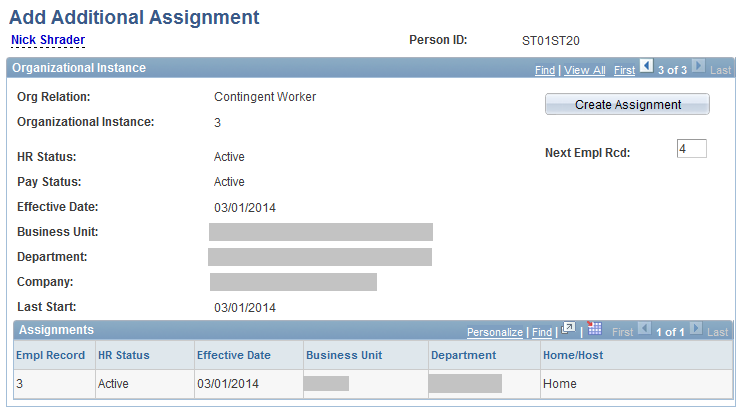
But, again little after a month, Nick Shrader is again given the opportunity to participate in a short term project effective from 01-MAR-2014. The human resources administrator creates a contingent worker instance for him through the component “Add Contingent worker Instance”.

Let’s again see how this assignment (EMPL_RCD = 3) has been created under organizational instance (ORG_INSTANCE_ERN = 3) for organizational relationship contingent worker (PER_ORG = “CWR”).
When we open this component this time, we will find that one more row has been added for the new organizational instance hence we need to navigate to that.

Navigate to the Organizational Instance “3”  


Let’s also see how the three tables PS_PER_ORG_INST, PS_PER_ORG_ASGN and PS_JOB are populated: 


Let’s have a visual as to understand how the sequence of events occurred and as a result of which how the various entities got affected: 


Also see below, the historical job records (Assignments) and the transactions done on them through JOB data component accumulate under the organizational instance in which they are created.  


We should also see how it looks like in database: 


The record, PS_PER_ORG_INST holds the organizational instances for a person and its represented by the field ORG_INSTANCE_ERN.
The record, PS_PER_ORG_ASGN holds the assignments under a particular organizational instance for a person.
The record, PS_JOB holds the details on each assignment and day to day transactions done on that assignment for a person.


Please also see


Want to learn PeopleSoft Core HR module thoroughly? I have several videos with total duration of 12 hours.


Following is the link to the YouTube videos Core HR
Click here to see course contents

Click here to know how it works

However, if you want to save money by purchasing whole module instead of in parts then visit this page to get more details PeopleSoft Functional and technical online training

Tuesday, February 18, 2014

Parallel Processing using Temporary Record with Application Engine in PeopleSoft

This is another important question we often encounter during the interviews. I have been struggling a lot to understand and finally did it with a classic example.

Parallel processing comes in picture when there is a requirement to process large bulk of rows without compromising the performance which might otherwise get impacted greatly with non-parallel based processing. We would try to understand this concept with an actual example where this concept has been used.

Requirement - There are 100,000 employees in the organization and many of them have more than one assignments (EMPL_RCD) hence the total number of rows in the PER_ORG_ASGN record collectively will be 120,000. Develop a program to update the primary job indicator flag for each employee in the table PRIMARY_JOBS.

Please also see -
PeopleSoft Set Control Field Concept and Tableset Sharing
Understanding dynamic prompts in Peoplesoft
PeopleSoft 9.1 Person Model
Adding and Maintaining Person Of Interest in PeopleSoft
PeopleSoft Set Control Field
Peoplesoft Row Level Security Search Records
SQL Query for Max Effective (MAX (EFFDT) dated row from JOB table
SQL Query to find all the Direct Reports for a Manager
How to find the List of Users Assigned to a Role 
Understanding Component Interface in PeopleSoft
Creating Query Report with PS Query in PeopleSoft
PeopleSoft HRMS Online Training

Implementing Parallel Processing using Temporary Record with Application Engine

Step :1 Open the App Designer
Step :2 Create three record definitions BN_EMPLID_WRK, BN_EMPLID1_WRK and BN_JOB_WRK of type "Temporary Table"


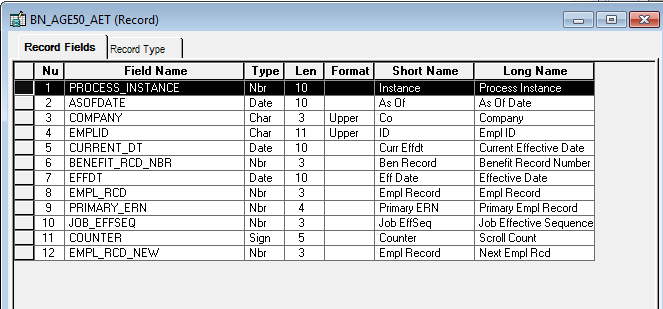
Step 3: Create a record BN_AGE50_AET of type "Derived/Work"


Step 4: Create a new Application Engine program "BN_UPD_PRIM" in app designer.
Step 5: Open the Application engine properties, go to "Temp Tables" tab and assign all three temp tables. Give the instance count as 10.


Step 6: Likewise, go to "State Records" tab and add the record BN_AGE50_AET.

Step 7: Build the temporary records BN_EMPLID_WRK, BN_EMPLID1_WRK and BN_JOB_WRK. App designer will create the number of instances for each of these temporary tables equal to given in the Program Properties -> Temp Tab - Instance count box which is "10" in our case which means the tables for each temp record will be created as below:

   BN_EMPLID_WRK -  BN_EMPLID_WRK1, BN_EMPLID_WRK2... up to 10 instances
   BN_EMPLID1_WRK - BN_EMPLID1_WRK1, BN_EMPLID1_WRK2.... up to 10 instances
   BN_JOB_WRK - BN_JOB_WRK1, BN_JOB_WRK2.... up to 10 instances

Step 8:  In the MAIN section of app engine (Or create a new section) add a Step/Action of SQL type, then add below SQL in that.


This SQL will load all the employees into temp table instances BN_EMPLID_WRK1, BN_EMPLID_WRK2... etc, Please make sure that you are using the meta sql %Table with the temp table name.
Lets say we have 100,000 employees in PS_PERSON record and each employee has just one assignment in PS_PER_ORG_ASGN. Since we have instance count for the temp record to 10 so when the program is run, The selected 100000 rows will be divided into like 100000/10 = 10000 and each chunk of 10000 rows will be inserted into one of the available instances BN_EMPLID_WRK1, BN_EMPLID_WRK2 ...etc.

Please also see -
PeopleSoft Set Control Field Concept and Tableset Sharing
Understanding dynamic prompts in Peoplesoft
PeopleSoft 9.1 Person Model
Adding and Maintaining Person Of Interest in PeopleSoft
PeopleSoft Set Control Field
Peoplesoft Row Level Security Search Records
SQL Query for Max Effective (MAX (EFFDT) dated row from JOB table
SQL Query to find all the Direct Reports for a Manager
Hiring a Person in PeopleSoft
Business Unit, Company and Regulatory Region in PeopleSoft
Process Security in PeopleSoft 

Please note that we don't have to worry about which instance a particular chunk is being inserted into instead, %Table metasql does that for us. However, Its not necessary that application engine will process the rows in exactly same way explained above, its just a logical explanation which is trying to convey that the number of selected rows i.e 100,000 will be divided and loaded into appropriate temp table instances to be processed simultaneously which is nothing but parallel processing.
Once above step is processed, the temp table BN_EMPLID_WRK has been loaded with large volume of data (1000,000 rows) of employees eligible to be processed. How many rows have been loaded in which temp table instance (BN_EMPLID_WRK1, BN_EMPLID_WRK2... etc) is none of our concerns.

Step 9: Add below Step/Action to update the statistics of temp table BN_EMPLID_WRK for the indexes to improve the performance when the rows are selected from the instances of this table in further steps.


Step 10: Add below Step/Action to get the JOB data (EFFDT, EFFSEQ and EMPL_STATUS) for each employee loaded in BN_EMPLID_WRK, and insert into another temp table BN_JOB_WRK (BN_JOB_WRK1, BN_JOB_WRK2 ... upto 10 instances).


Here again as you notice, we just used %Table metasql with the table BN_JOB_WRK in the SQL which will take care as to how should be the allocation of rows for the instances BN_JOB_WRK1, BN_JOB_WRK2...etc.

Step 11:  Add below Step/Action to update the statistics of temp table BN_JOB_WRK for the indexes to improve the performance when the rows are selected from the instances of this table in further steps.


Step 12: Add below Step/Action to select those employees loaded in the temp table BN_EMPLID_WRK who are all don't have more than one assignments (EMPL_RCD) for a benefit record number (BENEFIT_RCD_NBR), and insert into another temp table BN_EMPLID1_WRK (BN_EMPLID1_WRK1, BN_EMPLID1_WRK2...upto 10 instances).


Step 13: Add below Step/Action to update the statistics of temp table BN_EMPLID1_WRK for the indexes to improve the performance when the rows are selected from the instances of this table in further steps.


Step 14: Finally, mark the current EMPL_RCD as "Primary Job" in the  table PS_PRIMARY_JOBS for the processed employees by joining all three temp tables.


Well, it's quite evident that the procedure to implement parallel processing appears simpler than we thought. However, if we try to compare it with the non-parallel way of addressing the same request then it would certainly help us understand the concept clearly.

Let's discuss how would it have been addressed if there was no mechanism called "Parallel Processing".
1) Record Definition - The number of records will be same but the record type for BN_EMPLID_WRK, BN_EMPLID1_WRK and BN_JOB_WRK will be "Table".
2) Since there is no temporary record created hence no need to assign the temp records in Program Properties -> Temp Tables. It won't be applicable.
3) No Need to use %Table metasql while referring to the records.

Everything else will remain exactly same. We also need to understand how different it will behave without parallel processing.
In this case, When we run the program, The system will  store all the 100,000 rows into the table BN_EMPLID_WRK during the execution of Step 1 explained earlier unlike, into various temp table instances BN_EMPLID_WRK1, BN_EMPLID_WRK2..etc. So, when execution goes further then all the 100,000 rows are fetched from one table and processed but in case of parallel processing the chunk of rows i.e 10000 if fetched from each temp table instance and processed all simultaneously. 
Hence, If time taken to complete the processing is 20 Mins then it will be 20/10 ~ 2 to 5 Mins if parallel processing is used.


Please also see -
PeopleSoft Functional and Technical Online Training
Understanding dynamic prompts in Peoplesoft
PeopleSoft 9.1 Person Model
Adding and Maintaining Person Of Interest in PeopleSoft
PeopleSoft Set Control Field
Peoplesoft Row Level Security Search Records
SQL Query for Max Effective (MAX (EFFDT) dated row from JOB table
SQL Query to find all the Direct Reports for a Manager
Hiring a Person in PeopleSoft
How to find the List of Users Assigned to a Role 
Understanding Component Interface in PeopleSoft 
FTE For Multiple Jobs in PoeopleSoft
Business Unit, Company and Regulatory Region in PeopleSoft